BARRO
A downloadable game for Windows
GameJamPlus 2025/26
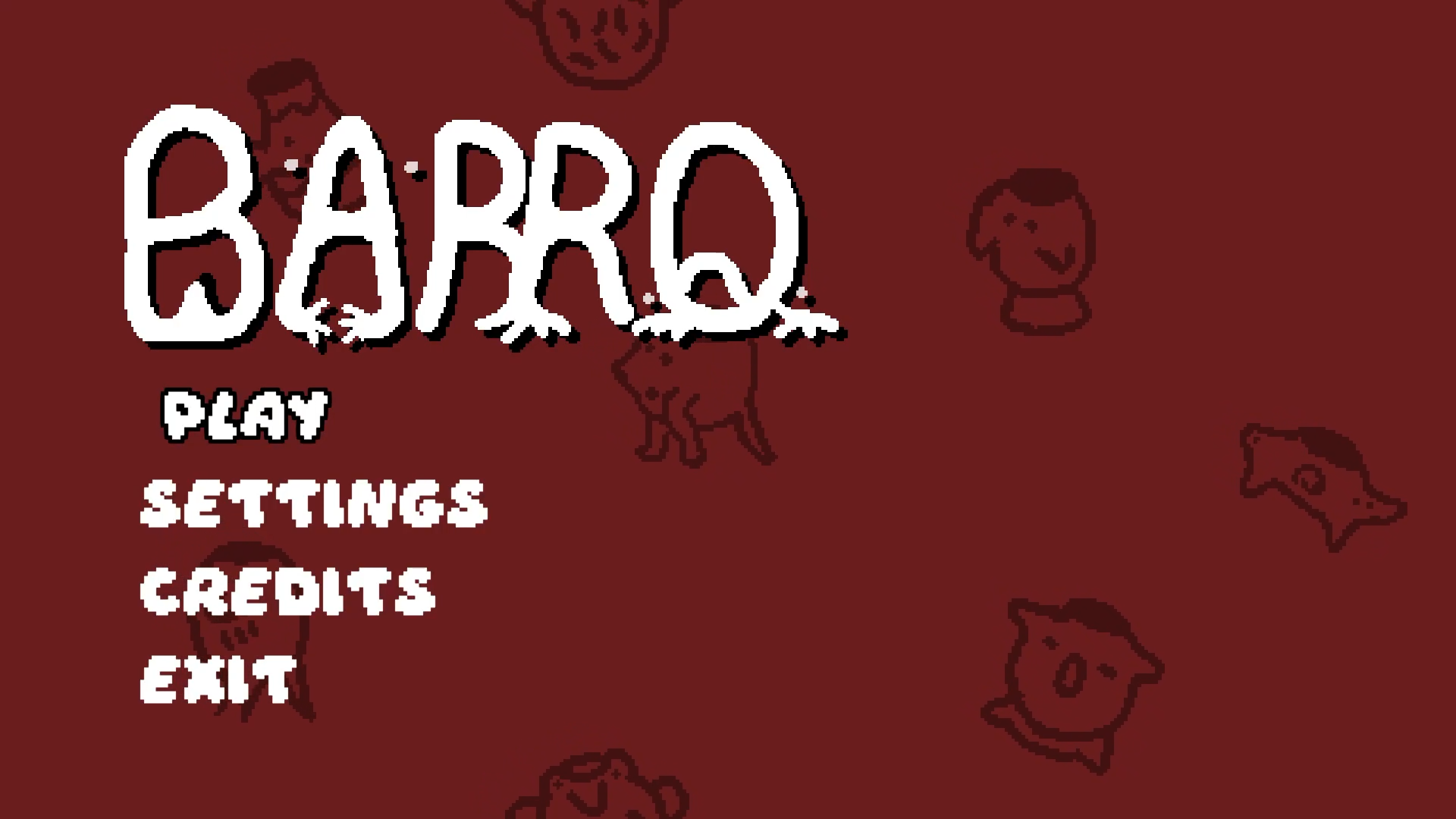
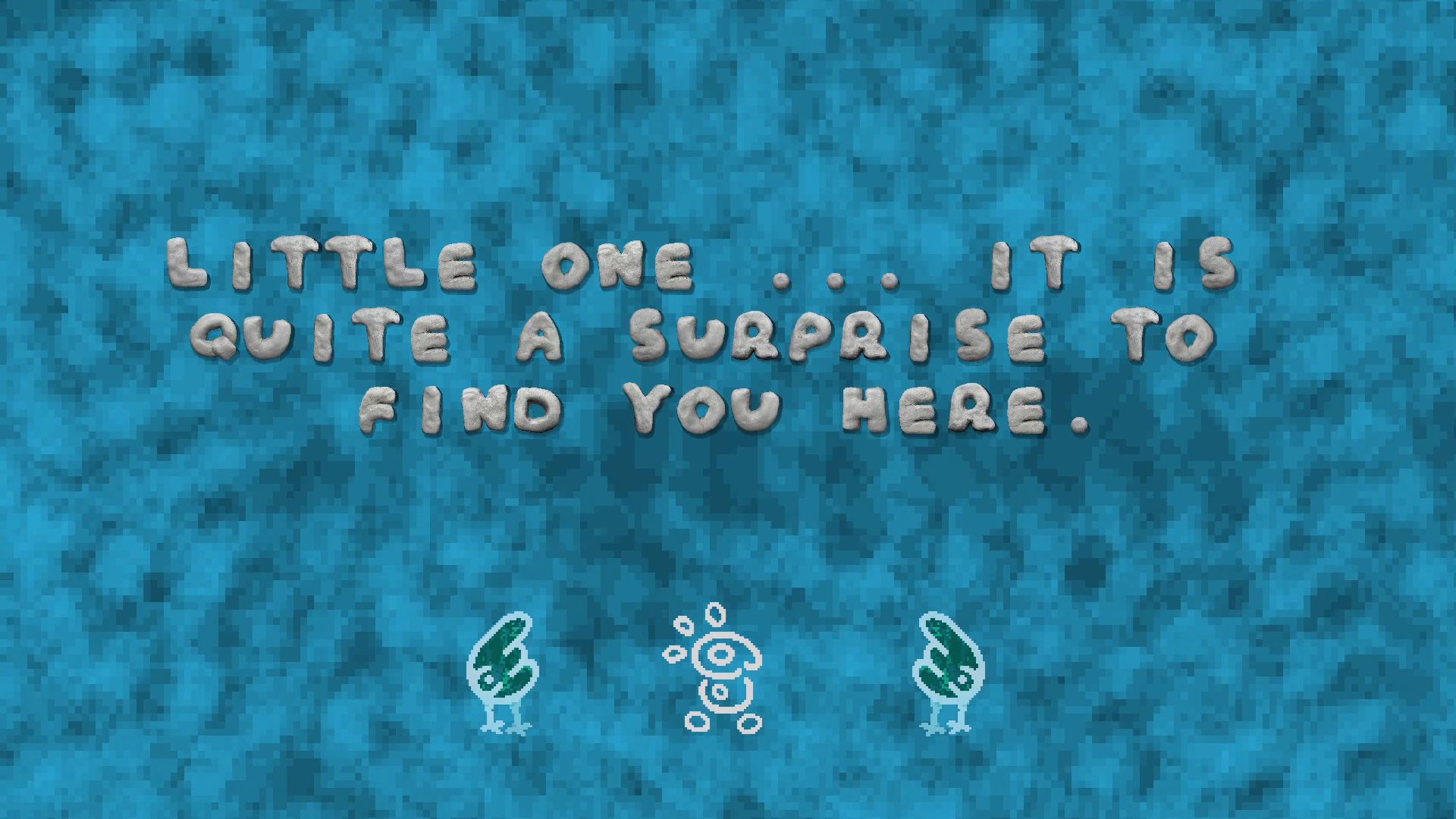
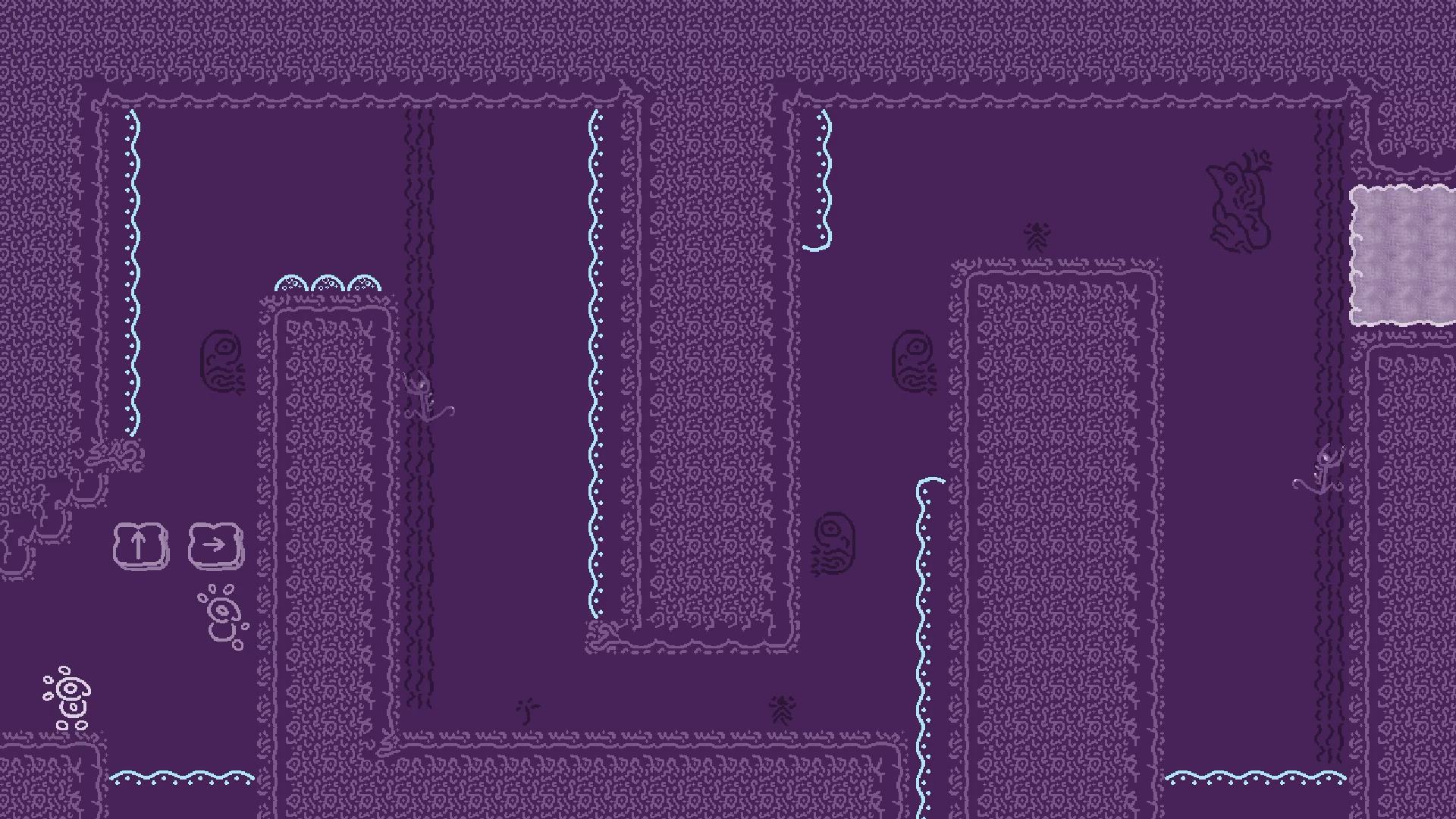
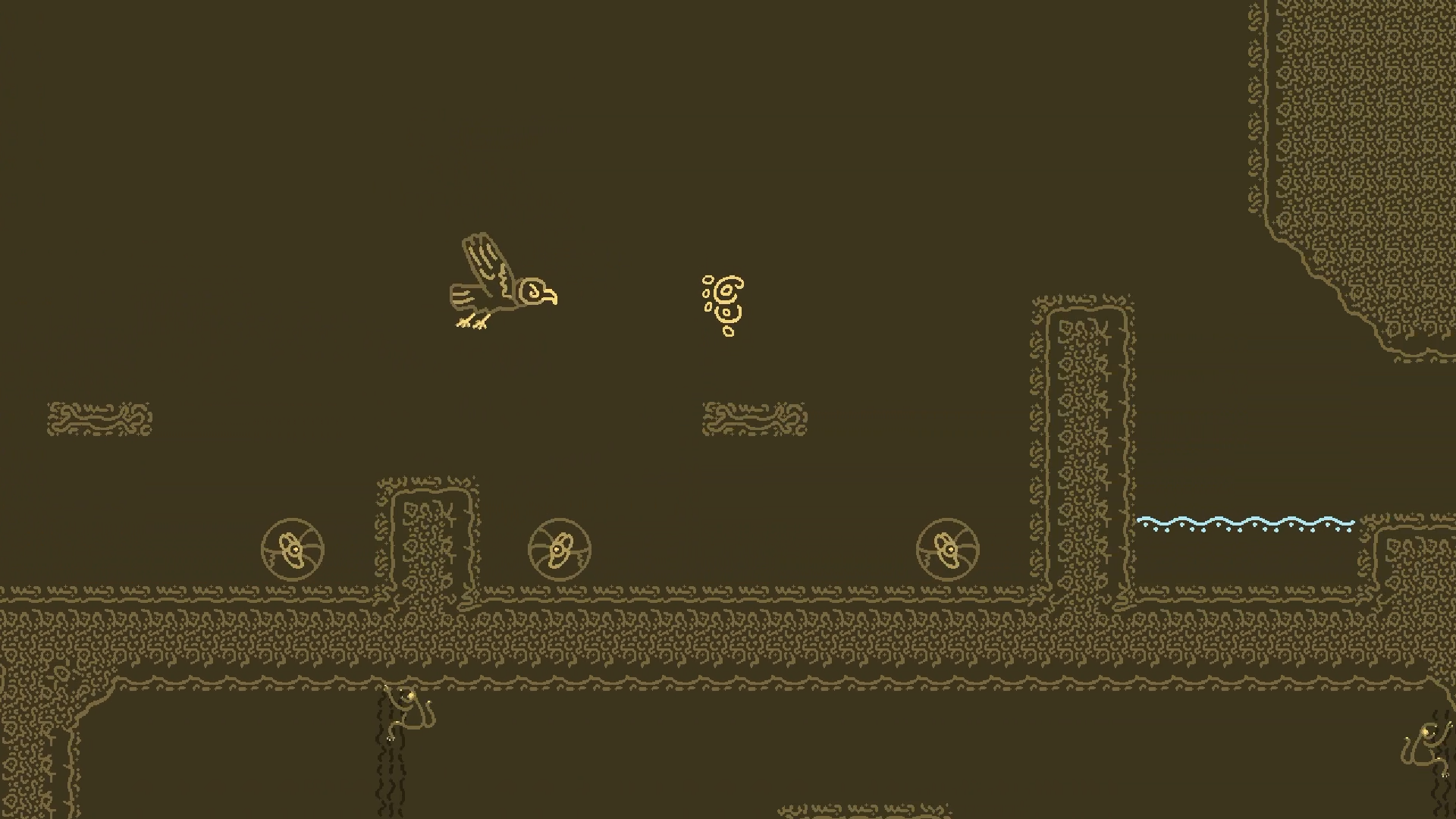
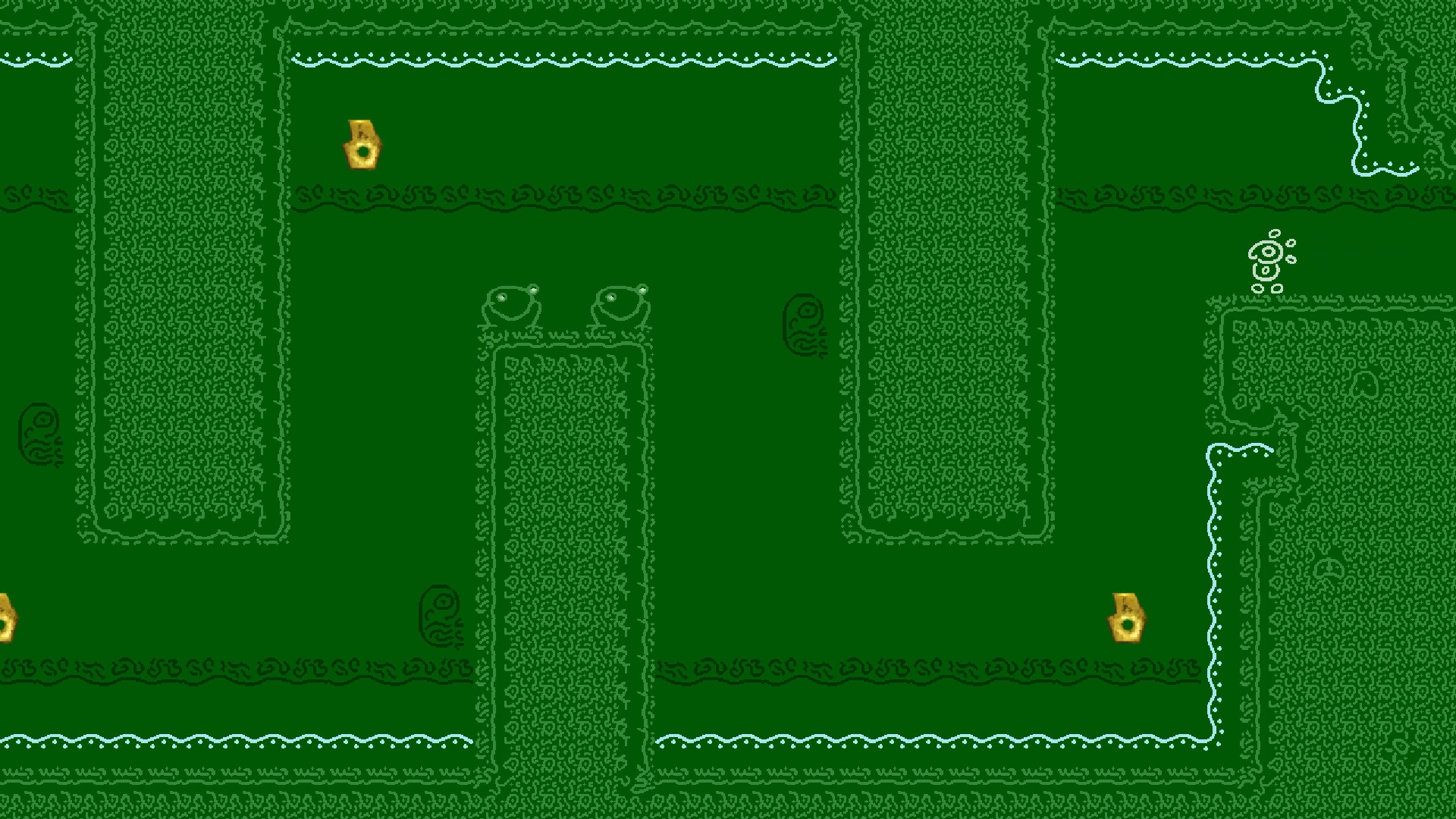
Eres Nimbugu, un chiquito jarrón que se levanta entre las murallas de arcilla de una enorme vasija. Navegando por múltiples cuartos poblados por criaturas variopintas, explora los entornos decorados y descubre las historias olvidadas en Barro.
You are Nimbugu, a clay child that awakens within the walls of a massive vase. Traversing through a variety of rooms populated by a plethora of creatures, explore the detailed environments and discover forgotten stories in Barro.
Download
Install instructions
~ENG~
Download and extract the files found in the .zip, then run the executable to play on Windows!
The game has support for controllers and keyboard.
Instructions to play on Steam Deck and Linux in English are down below!
~ESP~
¡Descarga y extrae los archivos encontrados en el .zip y corre el ejecutable en Windows para jugar!
El juego tiene soporte para teclado y control.
Steam Deck: Entra en modo escritorio, descarga el archivo .zip, descomprime y abre la carpeta. Da click derecho en el ejecutable "gamejamplus.exe" y luego click izquierdo en la opción "Añadir a Steam". Vuelve al modo juego y el juego debería aparecer en tu biblioteca la sección de juegos que no son de Steam.
Para usuarios de Linux: No podemos prometer compatibilidad con sistemas operativos Linux todavía, las más sinceras disculpas. Sin embargo, el juego es jugable en Linux siguiendo estas instrucciones:
- Descarga el archivo .zip y descomprime el mismo
- En Steam, ve a tu biblioteca y da click en el botón de "Agregar un producto", en la esquina inferior izquierda de la ventana
- En el menú que aparece, da click en el botón de "Agregar un producto que no es de Steam..."
- Da click en "Buscar..." y busca el ejecutable "gamejamplus.exe" en la carpeta donde hayas descomprimido el archivo .zip
- Busca el juego "gamejamplus.exe" en el área "Sin categoría" en tu biblioteca de Steam, y dale click
- Da click en el botón de Administrar (el que tiene el ícono de un engranaje, en la parte derecha de la ventana)
- Da click en el botón de "Propiedades..." en el menú que se abre
- En el campo "Accesso directo", escribe la ruta al ejecutable entre comillas en la sección "DESTINO". Esto puede variar dependiendo desde dónde hayas extraido y descargado el ejecutable. Por ejemplo, "/home/user/Desktop/barro/gamejamplus.exe". ESTA NO NECESARIAMENTE VA A SER LA RUTA EN TU CASO.
- En el campo "INICIAR EN", escribe la ruta de la carpeta que contiene el ejecutable. En el ejemplo anterior, sería /home/user/Desktop/barro/
- Da click en la sección Compatibilidad. Da click en la caja de selección que dice "Forzar el uso de una herramienta específica de compatibilidad para Steam Play"
- En el menú que se abre abajo, busca la opción Proton Experimental
- Luego de lanzar el juego en Linux, recomendamos configurar la resolución como la mayor que te sea posible en el menú "Settings". Ciertos efectos no funcionan completamente de lo contrario
Luego de esto deberías de poder jugar el juego en Linux desde Steam. Si estás usando la versión Flatpak de Steam, recuerda darle acceso al directorio que contiene el ejecutable.
----------------------------------------- LINUX AND STEAM DECK IN ENGLISH HERE -----------------------------------------
Steam Deck: Go into Desktop Mode, download the .zip file, unzip, and open the folder. Right click on the executable "gamejamplus.exe" and then left click on the "Add to Steam" option. Go back into game mode, the game should appear in your library under the Non-Steam Games section.
For Linux-based OS users: We cannot promise full compatibility with Linux OSs at the current time, our most sincerest apologies. However, the game is still playable on Linux following these instructions:
- Download the .zip file and unzip it.
- Open Steam. In Steam, go to your library and click on the "Add a Game", on the lower left corner of the window.
- In the pop-up menu, click on "Add a Non-Steam Game..."
- In the menu that appears, click on the "Browse..." button, then search for the "gamejamplus.exe" executable. It will be located in the uncompressed folder resulting from the .zip file
- Search for the game as "gamejamplus.exe" in the "Uncategorized" section of your library and click it
- Click on the "Manage" button (the one with a gear icon. It will be located in the right-hand section of the window)
- Click on "Properties..." in the pop-up menu
- In the "Shortcut" tab, write the path to the executable in the "TARGET" field, in between quotes. Your path may vary depending on where you downloaded and unzipped the file. For example, "/home/user/Desktop/barro/gamejamplus.exe". THIS MAY NOT NECESSARILY BE THE PATH IN YOUR CASE
- In the "START IN" field, write the path to the folder that contains the executable. In the previous example, it would be /home/user/Desktop/barro/
- Now click on the "Compatibility" tab, click on the checkbox that reads "Force the use of a specific Steam Play compatibility tool"
- Now on click on the drop-down menu that appears, search for the Proton Experimental option
- After launching the game on Linux, we recommend setting the resolution to the highest possible in the "Settings" menu. Certain effects do not work as intended otherwise.
After this, you should be able to play the game on a Linux OS from Steam. If you're using the Flatpak version of Steam, remember to give it access to the folder containing the executable.

Comments
Log in with itch.io to leave a comment.
It’s a great game, I hate and love it at the same time. Are there secrets ? There should be. I thought I found one :(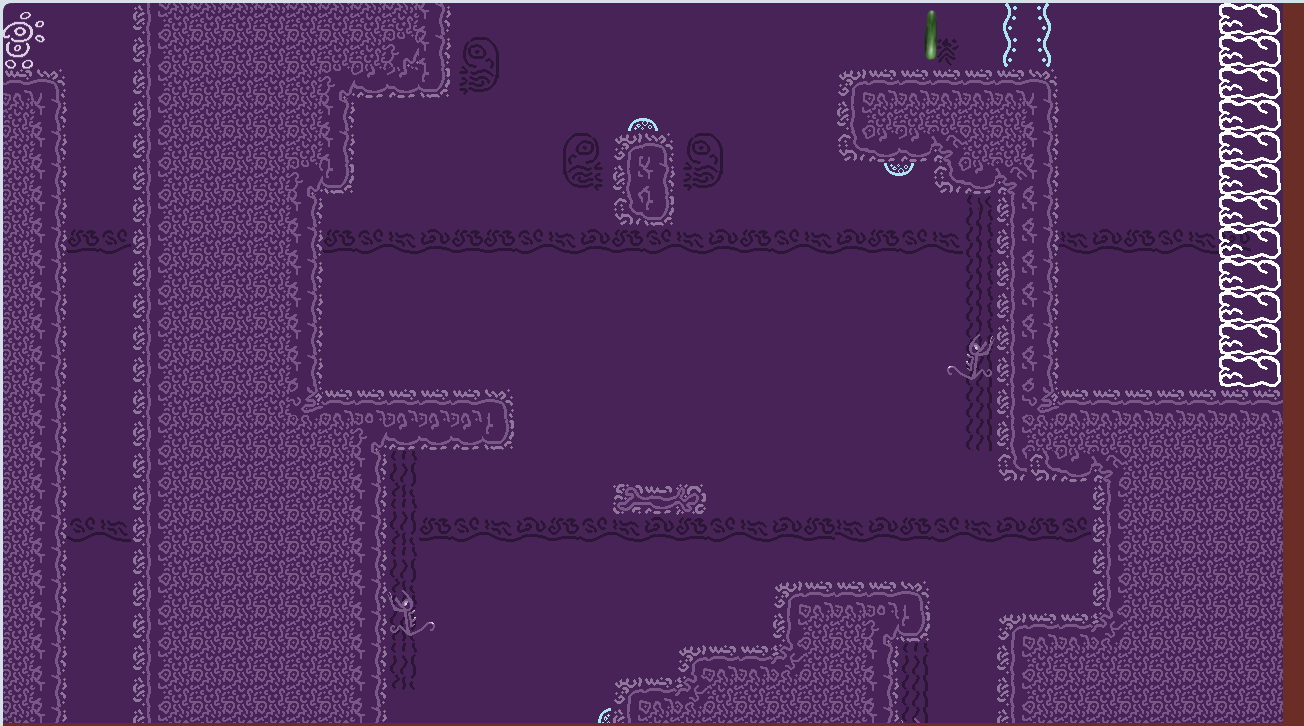
Muy lindo, la música y el arte 🌟
Very good, I played without knowing there was a dash so it was pretty hard but very fun! Beautiful art and sounds
Muy bueno